

Webhook integrations are only available on paid plans.Upgrade to Starter or Pro to automate your data workflows and sync people from lists to external systems.
- Automatically add leads who match your Ideal Customer Profile (ICP) to your sequence
- Sync contacts to your CRM when they show buying intent
- Push enriched lead data to Clay or other enrichment tools
- Connect Clearcue to any platform that accepts webhook data
How Webhook integrations work?
- Webhooks can only sync data from saved lists
- Create a list with your desired filters, then create a webhook for it
- Each person in the list will be sent to your webhook URL via POST request
- New people added to the list are automatically synced
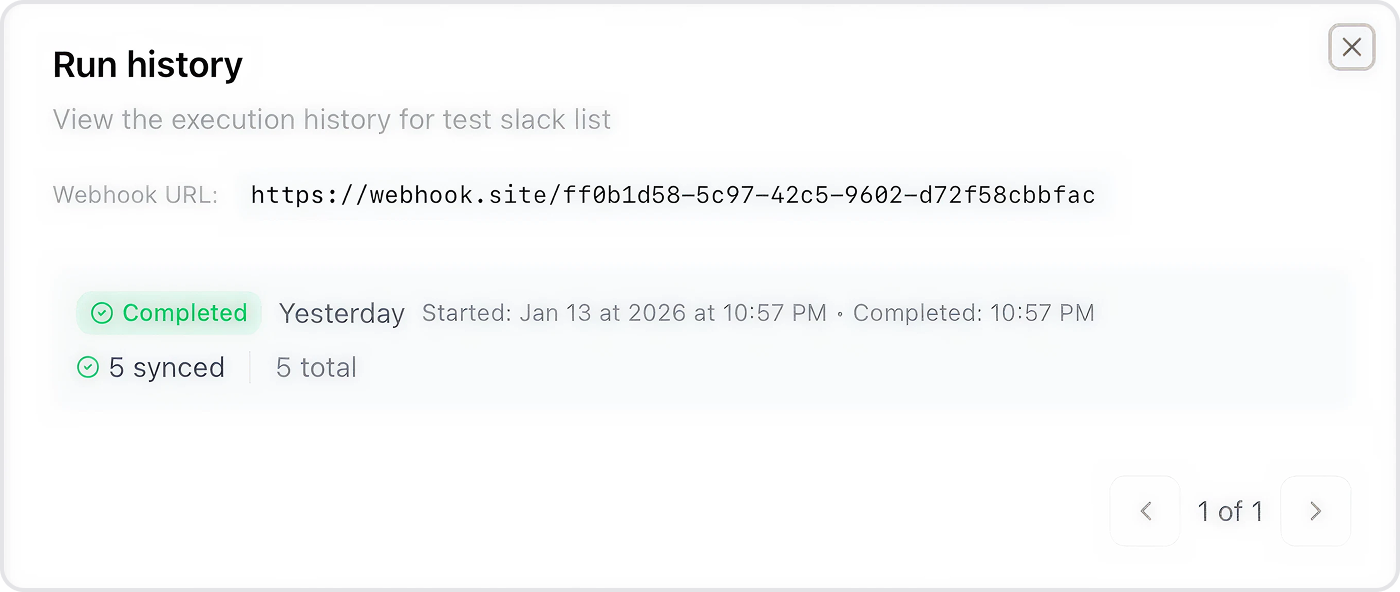
- View run history to track successful and failed syncs
Create a Webhook
You can set up webhooks in two ways:From Settings
Go to Settings → Integrations → Webhooks to manage all your webhooks in one place.1
Click Create Webhook
Click the Create Webhook button to open the configuration dialog.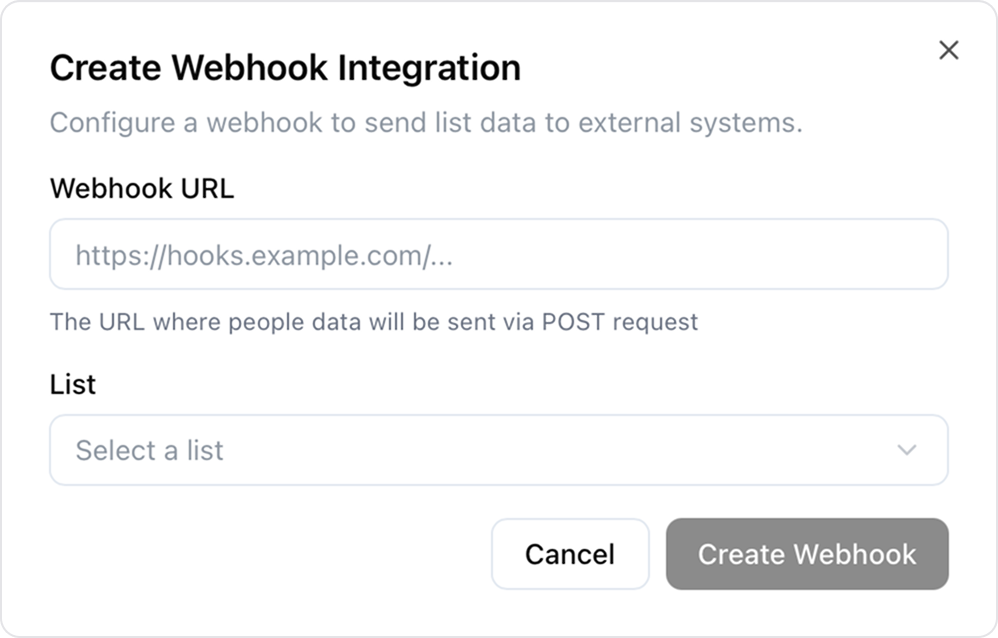
2
Select a List
Choose which List you want to sync. People matching this list’s filters will be sent to your webhook.
3
Enter your Webhook URL
Paste the URL where you want to receive the data. This must be a valid HTTPS endpoint.
4
Create
Click Create to save. Clearcue will automatically start syncing people from your list.
From a List
You can also configure webhooks directly from any List:1
Open the List you want to sync
Navigate to the List you want to send to an external system.
2
Go to List Settings
Go to List Settings → Integrations.
3
Configure your webhook
Enter your webhook URL and save. People from this list will be synced automatically.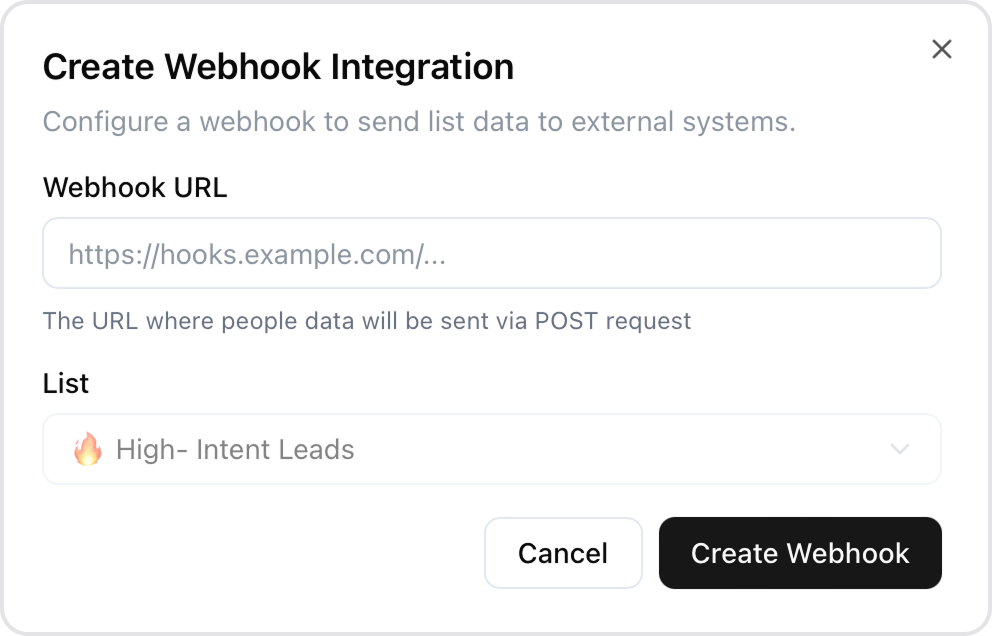
Manage Webhooks
From the webhooks table, you can see the status of each webhook including:- Status - Whether the webhook is enabled or disabled
- People Synced - How many people have been sent vs total in the list
- Last Run - When the last sync occurred
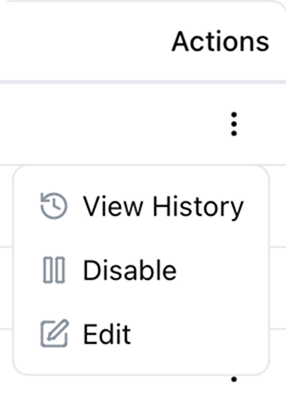
- View History - See detailed run history with success/failure counts
- Enable/Disable - Temporarily pause syncing without deleting the webhook
- Delete - Permanently remove the webhook
Webhook data schema
Every field Clearcue delivers, with an example payload and delivery behavior.