

What is a List?
A List in Clearcue is a dynamic collection of people or companies that meet specific conditions you’ve defined such as certain intent signals, engagement types, or activity patterns. Lists let you capture the results generated by your Agents and organise them into actionable groups. You can think of Lists as the output of your signals - who’s showing up, and why they matter. Each List updates automatically as new signals come in, so you’re always looking at the most relevant, up-to-date data.Why Use Lists?
Lists help you move from insight to action. By creating targeted lists, you can:- Segment results - group people or companies based on shared characteristics or behaviors.
- Prioritize outreach - quickly identify those showing the strongest buying intent or engagement.
- Track changes over time - watch how a segment evolves as new signals appear.
- Automate workflows - connect Lists to your CRM, marketing tools, or other systems via webhooks. For example, you could send a “High-Intent Leads” list directly to your CRM, or trigger a Slack notification whenever a new company enters your “Potential Partners” list.
Create a List
To create a new List:- Hover over Lists in the left navigation. Click on the + that appears on hover.
-
Name your List and create it by clicking Create List

- Define your conditions by choosing Audiences, adding filters, or specifying the types of signals to include.
-
Once you are done with making the necessary changes, click on Save > Save to this list
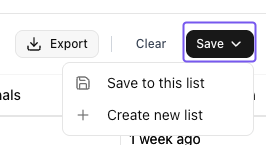
- If you want to update the existing list after changing its filters and Agents, Save > Save to this list.
- To keep the current list as is, and to create a new List with new filters you set, click Save > + Create a new List .
- Clearcue will start populating your List immediately with people or companies that meet your conditions.
-
You can export the results of your list by clicking Export and then selecting how you want to proceed - by exporting to CSV, to Clay, or by creating webhooks.

Explore what Signals are next
Signals
Understand what lists are used for and how you can create them