

What Are Filters?
Filters in Clearcue let you narrow down Records to focus on the people or companies that matter most. Filters allow you to refine data by specifying:- Audience filters - limit the view to entities that belong to a specific Audience or multiple Audiences. This ensures you’re only seeing signals from the segments you care about.
- Agent filters - focus on signals collected by particular agents or agent types, so you can prioritize the sources of intent most relevant to your workflow.
- Additional criteria - other person and company attributes such as position, industry, company size, or first detected date can be combined with Audience and Agent filters for more precise results.
How to Use Filters
Open the Records view
Access it from a specifc Agent, specifc Audience, People, Companies ot a specifc List
Select your criteria
You can filter by:
- Audience
- Agent - which agent collected the signal
- People filters
- Company filters
- First detected date of a person or a company - specify whether a person or comapny was first detected recently e.g. up to 1 month ago
Sort by columns
After filtering, you can sort by any relevant column, e.g. Signals (shows people/companies with the most ot least amount of signals first) or Last Interaction

Audience & Agent Filters
Filters on Audiences and Agents are particularly powerful because they let you:- Focus only on the entities your agents are tracking within a specific Audience.
- Prioritize signals from specific types of agents (e.g., engagement, event, community).
- Quickly isolate high-intent activity across multiple Audiences.
Audience Filters
You can select multiple Audience filters and you will always see people and companies that appear in any of the selected Audiences. You can’t change the “includes any of” part of the filter.
Agent Filters
You can select multiple Agent filters and then have the choice whether you want to view people and companies that have been detected by any of the selected agents (select “detected by any of”) or by all the selected agents (select “detected by all of”).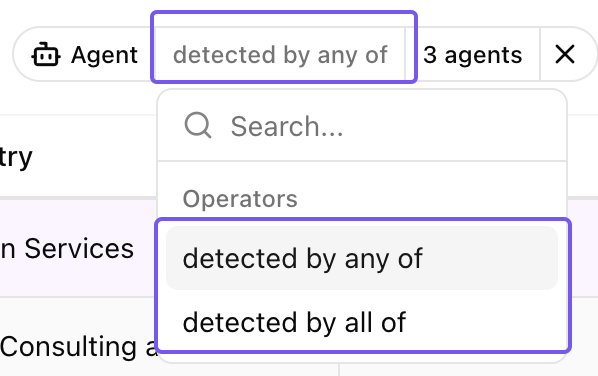
Operational Tips
- Combine filters for stronger insights. For example, filter a specific Audience AND a particular agent type to see the most relevant recent activity.
- Save frequently used filters as Lists for repeatable workflows (see Lists for details).
- Sort after filtering to surface the highest-priority People or Companies first.
- Experiment and iterate - multiple filters can be tested to uncover patterns you might otherwise miss.