> ## Documentation Index
> Fetch the complete documentation index at: https://docs.clearcue.ai/llms.txt
> Use this file to discover all available pages before exploring further.
# People & Companies
> See the individuals and organisations showing intent signals, then filter, analyse, and act.
# What are People & Companies?
In Clearcue, **People** and **Companies** are the entities Clearcue detects signals for. They represent the individuals and organisations behind the activity, engagement, and intent being tracked across your Audiences.
All People and Companies appear under **Records**, giving you a structured view of the signals associated with each entity.
# Working with Records
By working at the People or Company level, you can make sense of the signals collected, identify the highest-priority entities, and take targeted action. You can:
* **Switch between views** - toggle between People and Companies to analyse patterns at either level.
 * **Apply filters** - narrow your focus by Audience, signal type, people or company filters (see [Filters](/records/filters) for details).
* **Save Lists** - turn filtered views into actionable Lists for outreach, monitoring, or reporting (see [Lists](/records/lists) for details).
* **Track stacked signals** - see how multiple signals connect to individuals or organizations over time (see [Signals](/signals) for details).
# Global Search
Quickly find any person or company across your workspace using **Global Search**.
## Open Global Search
You can open it in two ways:
* Press **⌘K** (Mac) or **Ctrl+K** (Windows/Linux) from anywhere in the app.
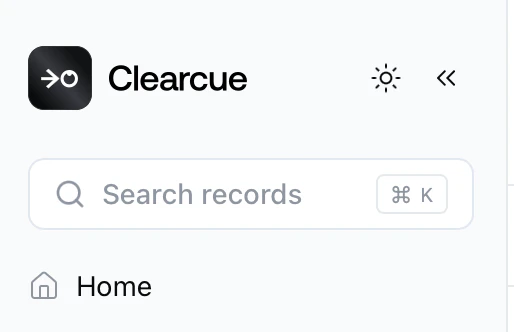
* Click the **Search records** bar at the top of the sidebar.
* **Apply filters** - narrow your focus by Audience, signal type, people or company filters (see [Filters](/records/filters) for details).
* **Save Lists** - turn filtered views into actionable Lists for outreach, monitoring, or reporting (see [Lists](/records/lists) for details).
* **Track stacked signals** - see how multiple signals connect to individuals or organizations over time (see [Signals](/signals) for details).
# Global Search
Quickly find any person or company across your workspace using **Global Search**.
## Open Global Search
You can open it in two ways:
* Press **⌘K** (Mac) or **Ctrl+K** (Windows/Linux) from anywhere in the app.
* Click the **Search records** bar at the top of the sidebar.
 ## Search and navigate results
Start typing a name and results appear instantly, grouped into **People** and **Companies**. Each result shows key context — job title and company for people, industry and location for companies — so you can identify the right record at a glance.
## Search and navigate results
Start typing a name and results appear instantly, grouped into **People** and **Companies**. Each result shows key context — job title and company for people, industry and location for companies — so you can identify the right record at a glance.
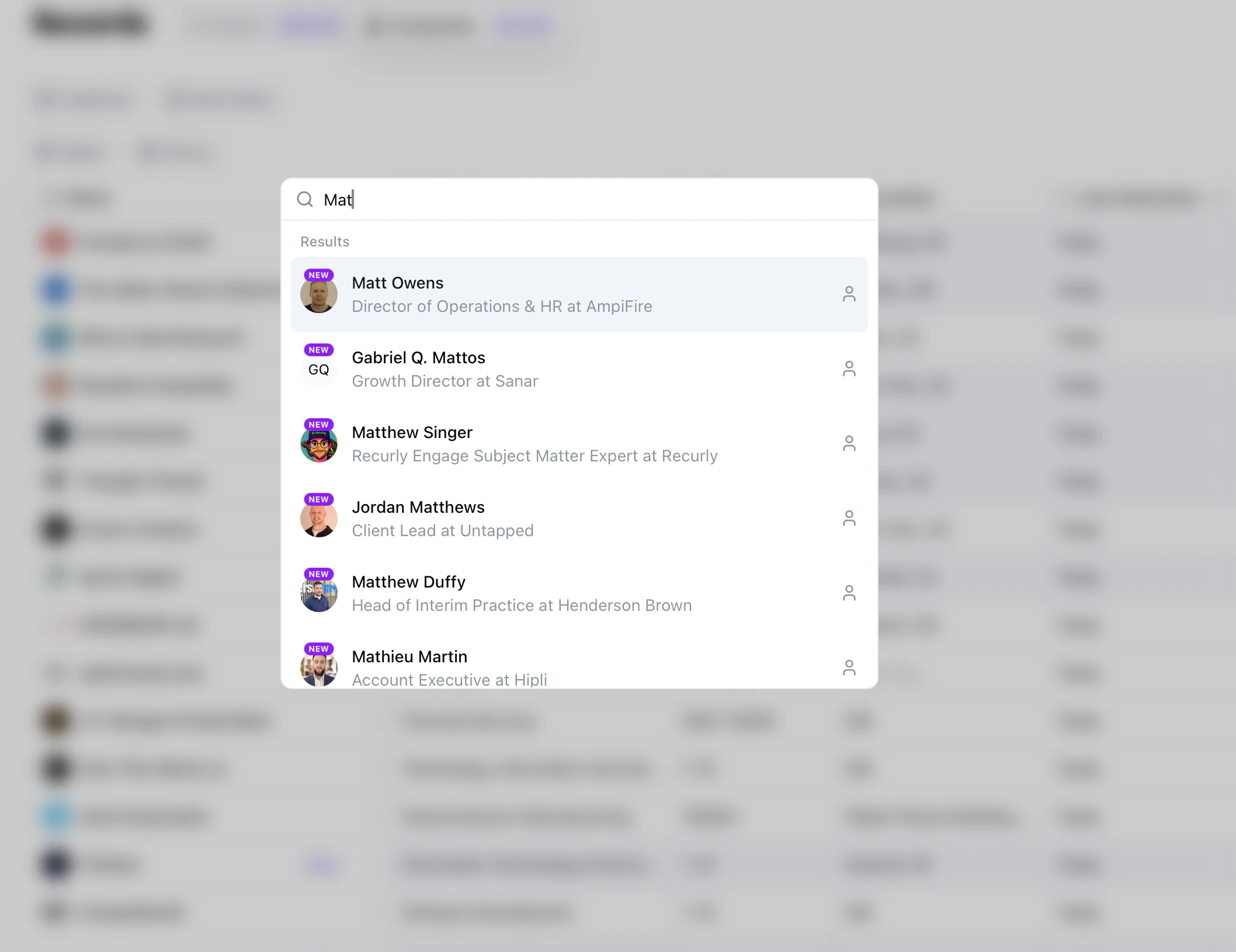 Click any result to open its full detail page.
# Detail pages
Clicking on any record opens its detail page, where you can explore the full profile, signal history, and related context.
Profile info, company context, signal history, AI insights, and research results.
Company profile, related people, and aggregated signal history.
Click any result to open its full detail page.
# Detail pages
Clicking on any record opens its detail page, where you can explore the full profile, signal history, and related context.
Profile info, company context, signal history, AI insights, and research results.
Company profile, related people, and aggregated signal history.