> ## Documentation Index
> Fetch the complete documentation index at: https://docs.clearcue.ai/llms.txt
> Use this file to discover all available pages before exploring further.
# Audiences
> Group the people and companies that matter to your goals so Clearcue can surface the right signals for each.
# What is an Audience?
An Audience is a defined group of **people or companies** you want Clearcue to monitor for [intent signals](/signals).\
In sales, this usually maps directly to your **ideal customer segments** - specific types of accounts and the decision-makers within them.
For example, you might define audiences such as:
* Mid-market SaaS companies in the US
* Enterprise organizations in a specific industry
* Companies at a particular funding or growth stage
* Key decision-makers like CFOs, RevOps leaders, CTOs, or Heads of Procurement
By defining these groups upfront, Clearcue focuses on the **right parts of the market**, filtering out noise and surfacing signals that are actually relevant to your pipeline and GTM motion.
Audiences act as **reusable segment definitions**.\
Instead of manually rebuilding filters every time, you can switch between segments quickly to:
* Compare where real intent is emerging
* Prioritize which accounts to act on next
* Identify which decision-makers are showing buying behavior
* Avoid chasing signals from accounts that don’t fit your strategy
In short - your Audiences determine who Clearcue watches, so your signals always align with your market, your ICP, and your sales priorities.
# Example Audiences
Here are some ways different types of companies might define Audiences in Clearcue.\
Each example shows how to structure the segment and who within those companies Clearcue should track.
**Audience definition:**\
Mid-market SaaS companies where Operations leadership is likely involved in buying decisions.
**Company attributes (filters):**\
• Industry: Software / SaaS\
• Company size: 200–1500 employees\
• Country: United States or Europe
**Person attributes (filters):**\
• Job title keywords: “RevOps”, “Sales Operations”, “Revenue Operations”\
• Seniority: Manager, Director, VP
**Purpose:**\
Spot when operations leaders begin researching process or tooling changes.
**Audience definition:**\
Large financial institutions with finance leaders involved in system decisions.
**Company attributes (filters):**\
• Industry: Financial Services / Banking\
• Company size: 5000+ employees\
• Country: Global or region-specific (e.g., North America)
**Person attributes (filters):**\
• Job title keywords: “Finance”, “Risk”, “Compliance”\
• Seniority: Director, VP, C-level
**Purpose:**\
Detect movement or interest inside large, slow-moving accounts.
**Audience definition:**\
Product-led tech companies scaling technical teams.
**Company attributes (filters):**\
• Industry: Software / Technology\
• Company size: 150–2000 employees\
• Country: Any region you want to target (e.g., US, UK, DACH)
**Person attributes (filters):**\
• Job title keywords: “Engineering”, “Platform”, “AI”, “CTO”\
• Seniority: Senior Manager+, Director, VP, C-level
**Purpose:**\
See when engineering leadership begins exploring new infrastructure, tooling, or AI workflows.
You can also define **multiple audiences** for the *same* market, differing only by fit level.
**ICP Tier 1 (high fit):**\
• Company size: 500–1500\
• Industry: SaaS\
• Country: Target region\
• Seniority: Director+\
• Titles: Specific decision-maker keywords
**ICP Tier 2 (good fit):**\
• Company size: 150–500 or 1500–3000\
• Slightly broader job title keywords
**Purpose:**\
See where **higher-value segments** show intent first.
### **Why this matters**
By defining **who you care about** and **which roles matter inside those companies**, Clearcue surfaces **the right signals at the right time** helping you see buying intent as it forms, not after the deal is already in motion.
# Create an Audience
To create an Audience:
1. Go to *Audience* in the left navigation and click on *+Create Audience* in the top right corner of the page.
 2. Input the name of the Audience under *Audience Title*.
3. Describe the Audience by specifying people or company attributes with up to 1000 characters. Click *Generate Audience* once ready.
2. Input the name of the Audience under *Audience Title*.
3. Describe the Audience by specifying people or company attributes with up to 1000 characters. Click *Generate Audience* once ready.
 4. Clearcue automatically creates filters based on the Audience description you provided. You can review these filters and alter them if needed.
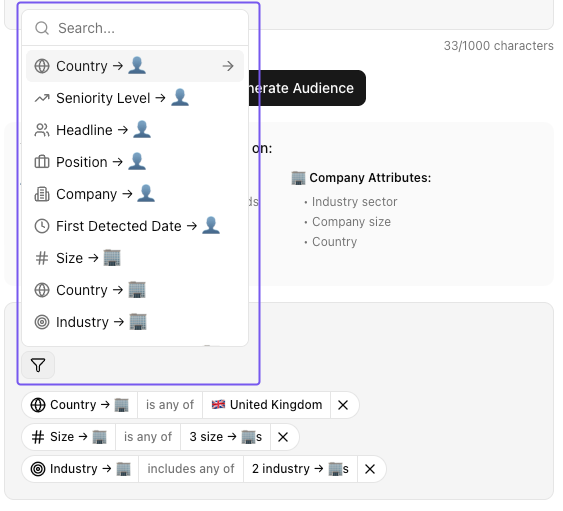
* Click the filter icon for addiitonal filters.
4. Clearcue automatically creates filters based on the Audience description you provided. You can review these filters and alter them if needed.
* Click the filter icon for addiitonal filters.
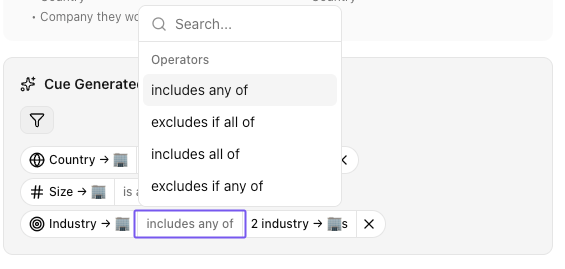
 * Click the operators to view all options and make any changes in the logic.
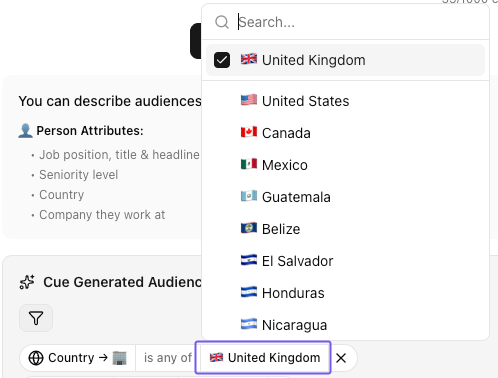
 * To change the values of a specifc filter, click the selected value box:
 5. Click *Create Audience* for the Audience to be saved with the selected filters. Then, that Audience can be used as a filter in any of tables like Lists and Signals. When filtering by an Audience, you automatically filter by the preselcted filters that form that specifc Audience.
# Edit an Audience
The Audiences that are of interest to you will most likely change overtime so you can edit them when needed:
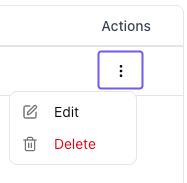
1. Go to *Audiences,* find the Audience you want to edit and click on the button under *Actions*, and then click *Edit.*
5. Click *Create Audience* for the Audience to be saved with the selected filters. Then, that Audience can be used as a filter in any of tables like Lists and Signals. When filtering by an Audience, you automatically filter by the preselcted filters that form that specifc Audience.
# Edit an Audience
The Audiences that are of interest to you will most likely change overtime so you can edit them when needed:
1. Go to *Audiences,* find the Audience you want to edit and click on the button under *Actions*, and then click *Edit.*
 2. You can change the name of the Audience under *Audience Title* and the filters of the Audince under *Current Audience Filters.*
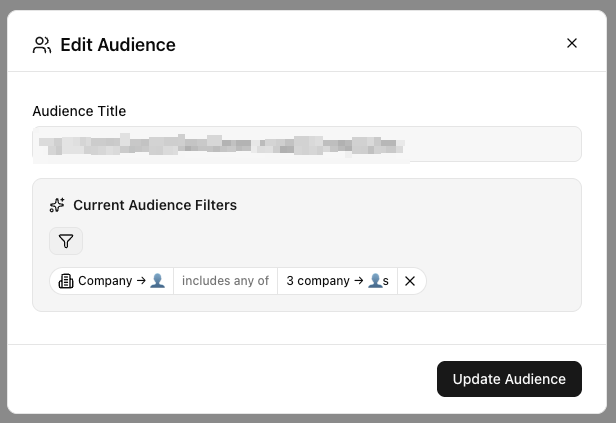 3. Click *Update Audience* once you are ready.
Records that have that specifc Audience applied in the filters, will automatically update the shown results based on the updated Audience filters.
# Use your Audiences
By setting up different Audiences, you **save valuable time** later on. Instead of defining separate filters every time you explore your data, your audiences already group the right people or companies for you.
Each Audience represents a specific segment — whether that’s prospects, investors, candidates, or partners — which you can then **combine** **or switch between** easily as you analyse the signals Clearcue has collected.
This makes it simpler to spot patterns, compare engagement across groups, and take action faster without starting from scratch each time.
Learn more about how [Filters](/records/filters) work and how to combine them effectively.
You can also use **Audiences** strategically to *exclude* certain people or companies from your analysis or targeting. For example:
* Exclude **existing customers** when searching for new prospects.
* Exclude **competitors** when analyzing engagement signals.
* Exclude **current employees** when building a hiring audience.
* Exclude **low-intent segments** when prioritizing leads for outreach.
By creating audiences that represent these groups, you can quickly apply them as **exclusion filters** in your views or data exploration. This helps you focus only on the signals that truly matter—making your insights cleaner, more precise, and easier to act on.
***
## Create Lists next
Understand what lists are used for and how you can create them
3. Click *Update Audience* once you are ready.
Records that have that specifc Audience applied in the filters, will automatically update the shown results based on the updated Audience filters.
# Use your Audiences
By setting up different Audiences, you **save valuable time** later on. Instead of defining separate filters every time you explore your data, your audiences already group the right people or companies for you.
Each Audience represents a specific segment — whether that’s prospects, investors, candidates, or partners — which you can then **combine** **or switch between** easily as you analyse the signals Clearcue has collected.
This makes it simpler to spot patterns, compare engagement across groups, and take action faster without starting from scratch each time.
Learn more about how [Filters](/records/filters) work and how to combine them effectively.
You can also use **Audiences** strategically to *exclude* certain people or companies from your analysis or targeting. For example:
* Exclude **existing customers** when searching for new prospects.
* Exclude **competitors** when analyzing engagement signals.
* Exclude **current employees** when building a hiring audience.
* Exclude **low-intent segments** when prioritizing leads for outreach.
By creating audiences that represent these groups, you can quickly apply them as **exclusion filters** in your views or data exploration. This helps you focus only on the signals that truly matter—making your insights cleaner, more precise, and easier to act on.
***
## Create Lists next
Understand what lists are used for and how you can create them