> ## Documentation Index
> Fetch the complete documentation index at: https://docs.clearcue.ai/llms.txt
> Use this file to discover all available pages before exploring further.
# Webhooks
> Sync with any platform in just a few clicks.
**Webhook integrations are only available on paid plans.**
Upgrade to Starter or Pro to automate your data workflows and sync people from lists to external systems.
With Webhooks, you can:
* Automatically add leads who match your Ideal Customer Profile (ICP) to your sequence
* Sync contacts to your CRM when they show buying intent
* Push enriched lead data to Clay or other enrichment tools
* Connect Clearcue to any platform that accepts webhook data
## How Webhook integrations work?
* Webhooks can only sync data from saved lists
* Create a list with your desired filters, then create a webhook for it
* Each person in the list will be sent to your webhook URL via POST request
* New people added to the list are automatically synced
* View run history to track successful and failed syncs
## Create a Webhook
You can set up webhooks in two ways:
### From Settings
Go to **Settings** → **Integrations** → **Webhooks** to manage all your webhooks in one place.
Click the **Create Webhook** button to open the configuration dialog.
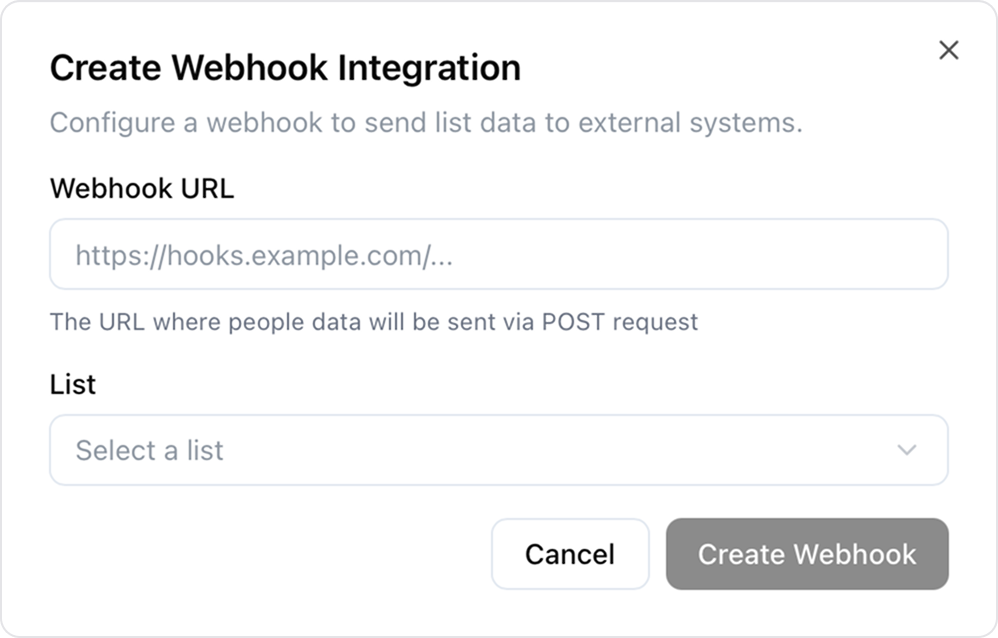 Choose which List you want to sync. People matching this list's filters will be sent to your webhook.
Paste the URL where you want to receive the data. This must be a valid HTTPS endpoint.
Click **Create** to save. Clearcue will automatically start syncing people from your list.
### From a List
You can also configure webhooks directly from any List:
Navigate to the List you want to send to an external system.
Go to **List Settings** → **Integrations**.
Enter your webhook URL and save. People from this list will be synced automatically.
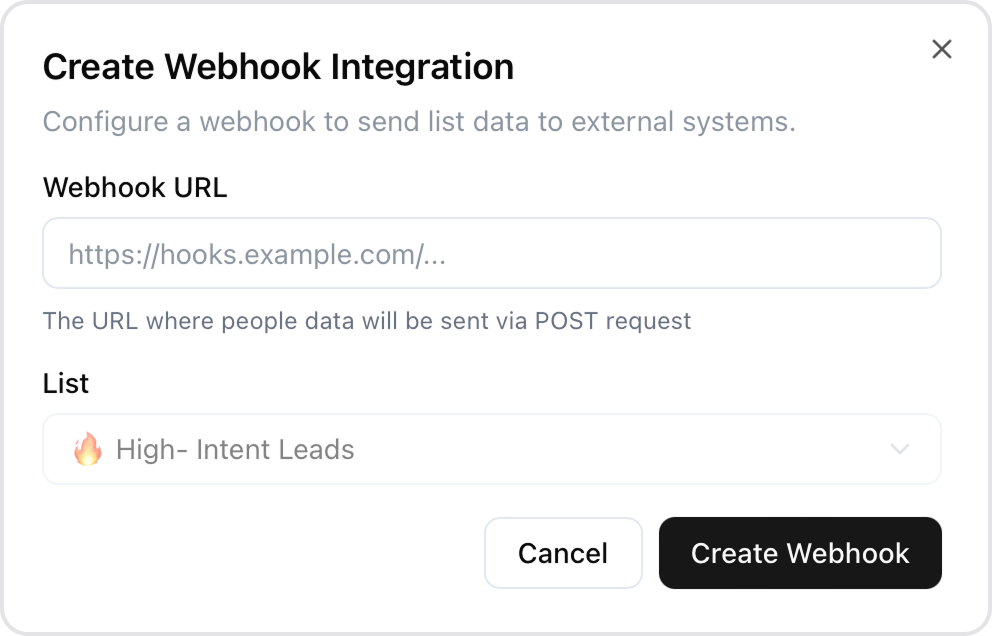
Choose which List you want to sync. People matching this list's filters will be sent to your webhook.
Paste the URL where you want to receive the data. This must be a valid HTTPS endpoint.
Click **Create** to save. Clearcue will automatically start syncing people from your list.
### From a List
You can also configure webhooks directly from any List:
Navigate to the List you want to send to an external system.
Go to **List Settings** → **Integrations**.
Enter your webhook URL and save. People from this list will be synced automatically.
 ## Manage Webhooks
From the webhooks table, you can see the status of each webhook including:
* **Status** - Whether the webhook is enabled or disabled
* **People Synced** - How many people have been sent vs total in the list
* **Last Run** - When the last sync occurred
Use the **Actions** menu to:
## Manage Webhooks
From the webhooks table, you can see the status of each webhook including:
* **Status** - Whether the webhook is enabled or disabled
* **People Synced** - How many people have been sent vs total in the list
* **Last Run** - When the last sync occurred
Use the **Actions** menu to:
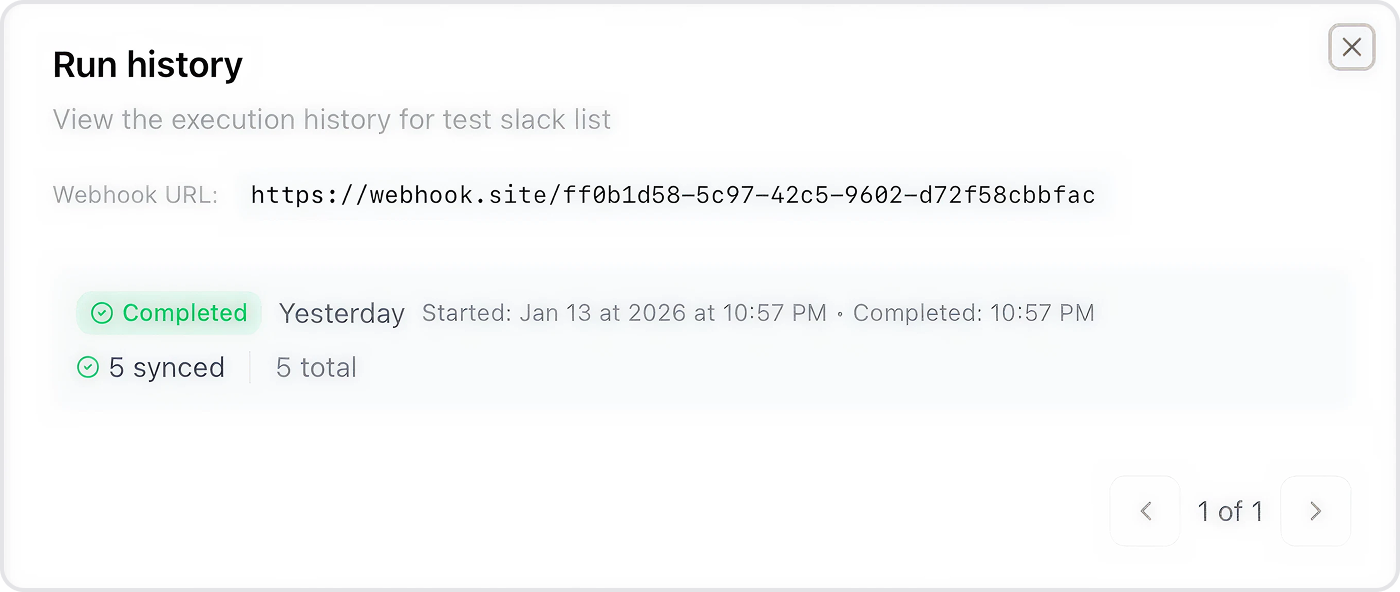
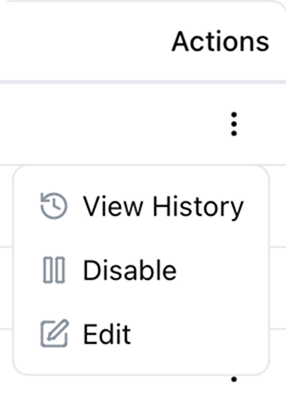 * **View History** - See detailed run history with success/failure counts
 * **Enable/Disable** - Temporarily pause syncing without deleting the webhook
* **Delete** - Permanently remove the webhook
* **Enable/Disable** - Temporarily pause syncing without deleting the webhook
* **Delete** - Permanently remove the webhook