> ## Documentation Index
> Fetch the complete documentation index at: https://docs.clearcue.ai/llms.txt
> Use this file to discover all available pages before exploring further.
# Slack
> Get daily notifications with new leads directly in your Slack workspace.
# Connect Clearcue to Slack
Clearcue combines social signals from your brand, team, competitors, influencers, topics, events, news, job offers and more to show real-time intent and find similar leads you'd never spot manually.
Connect your Slack workspace so you and your team receive daily notifications when new leads are detected and qualified by Clearcue.
## What you'll get
* **Daily lead updates** - Receive a summary of all new leads from your selected List
* **Lead details included** - Each notification includes key information about the detected leads
* **Team-wide visibility** - Share lead notifications with your entire team in a dedicated channel
* **Scheduled delivery** - Choose the time that works best for your workflow
## Add to Slack
Click the button below to connect Clearcue to your Slack workspace:
 ## Configure your notifications
After installing the Slack app, configure your notifications in Clearcue. You can set up notifications in two ways:
### From Settings
Go to **Settings** → **Integrations** → **Slack** to manage all your Slack notifications in one place.
Choose the Slack channel where you want to receive lead notifications. This can be a public or private channel.
Pick which List you want to monitor. New leads added to this List will be included in your daily notification.
Choose what time you want to receive your daily lead update.
### From a List
You can also configure Slack notifications directly from any List:
Navigate to the List you want to receive notifications for.
Go to **List Settings** → **Integrations** → **Notifications**.
Select a Slack channel and set your preferred delivery time.
## Configure your notifications
After installing the Slack app, configure your notifications in Clearcue. You can set up notifications in two ways:
### From Settings
Go to **Settings** → **Integrations** → **Slack** to manage all your Slack notifications in one place.
Choose the Slack channel where you want to receive lead notifications. This can be a public or private channel.
Pick which List you want to monitor. New leads added to this List will be included in your daily notification.
Choose what time you want to receive your daily lead update.
### From a List
You can also configure Slack notifications directly from any List:
Navigate to the List you want to receive notifications for.
Go to **List Settings** → **Integrations** → **Notifications**.
Select a Slack channel and set your preferred delivery time.
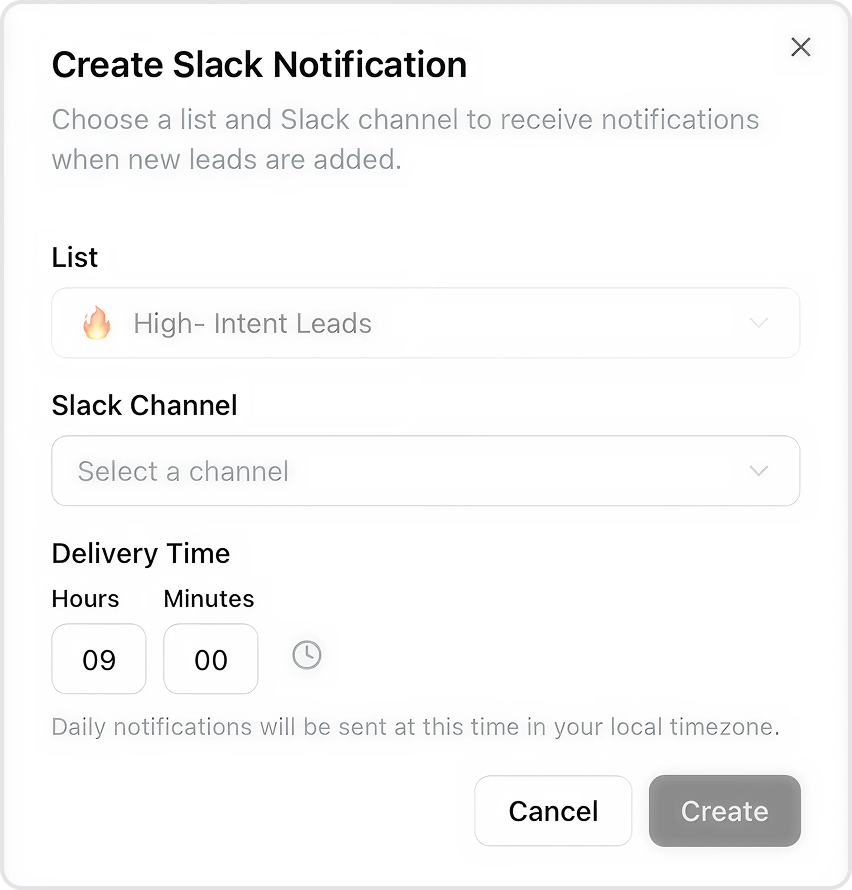 This is useful when you want to quickly set up notifications while working with a particular List.
You can set up multiple Slack notifications for different Lists, each with its own channel and delivery time. For example, send high-intent leads to your sales channel at 9am and competitor engagement signals to your marketing channel at 2pm.
## How it works
1. Clearcue continuously monitors data sources and detects new leads
2. Leads matching your Audience filters are added to your Lists
3. Once daily, at your chosen time, Clearcue sends a summary of new leads to your Slack channel
4. Your team can review leads together and take action quickly
This is useful when you want to quickly set up notifications while working with a particular List.
You can set up multiple Slack notifications for different Lists, each with its own channel and delivery time. For example, send high-intent leads to your sales channel at 9am and competitor engagement signals to your marketing channel at 2pm.
## How it works
1. Clearcue continuously monitors data sources and detects new leads
2. Leads matching your Audience filters are added to your Lists
3. Once daily, at your chosen time, Clearcue sends a summary of new leads to your Slack channel
4. Your team can review leads together and take action quickly