> ## Documentation Index
> Fetch the complete documentation index at: https://docs.clearcue.ai/llms.txt
> Use this file to discover all available pages before exploring further.
# HeyReach
> Connect intent signals to LinkedIn outreach — sync leads to HeyReach and track engagement back in Clearcue.
HeyReach is a LinkedIn outreach automation platform. The Clearcue–HeyReach integration connects intent data to LinkedIn outreach, working in two directions:
1. **Clearcue → HeyReach (List Sync):** Automatically push high-intent leads from Clearcue into HeyReach lists so you can run targeted outreach campaigns.
2. **HeyReach → Clearcue (Webhooks):** Send outreach events (messages sent, replies received) back into Clearcue as signals, giving you a complete view of prospect engagement.
With this integration you can:
* Reach out to people already showing buying intent — leading to higher reply rates
* Keep your HeyReach lists in sync automatically as new people match your Clearcue filters
* Track outreach activity as signals in Clearcue for closed-loop reporting
## Connect your HeyReach account
Navigate to **Settings** → **Integrations** → **HeyReach**.
In HeyReach, go to [Settings → API](https://app.heyreach.io/settings/api) to find your API key.
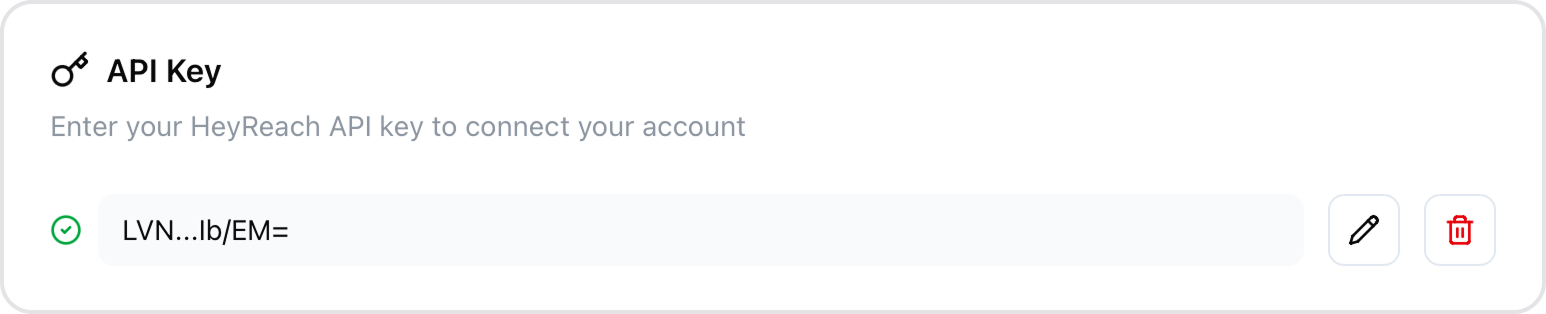
Paste your HeyReach API key in Clearcue and click **Save**.
Once connected, you'll see your API key displayed (masked for security) with options to edit or disconnect.
 ## Create a List Sync
You can set up syncs in two ways:
Go to **Settings** → **Integrations** → **HeyReach** to manage all your syncs in one place.
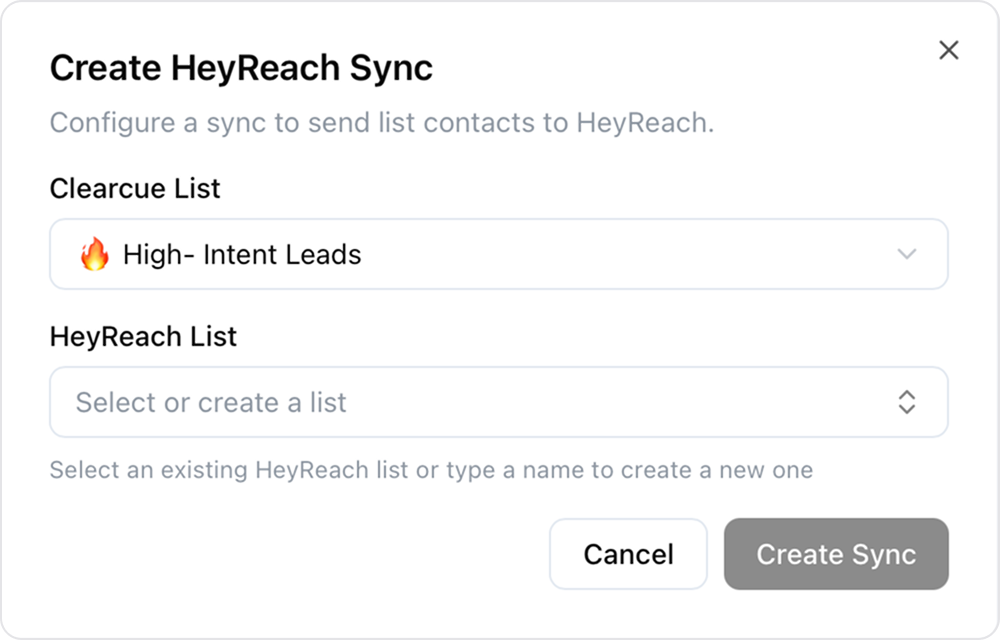
Click the **Create Sync** button to open the configuration dialog.
Choose which List you want to sync. People matching this list's filters will be sent to HeyReach.
## Create a List Sync
You can set up syncs in two ways:
Go to **Settings** → **Integrations** → **HeyReach** to manage all your syncs in one place.
Click the **Create Sync** button to open the configuration dialog.
Choose which List you want to sync. People matching this list's filters will be sent to HeyReach.
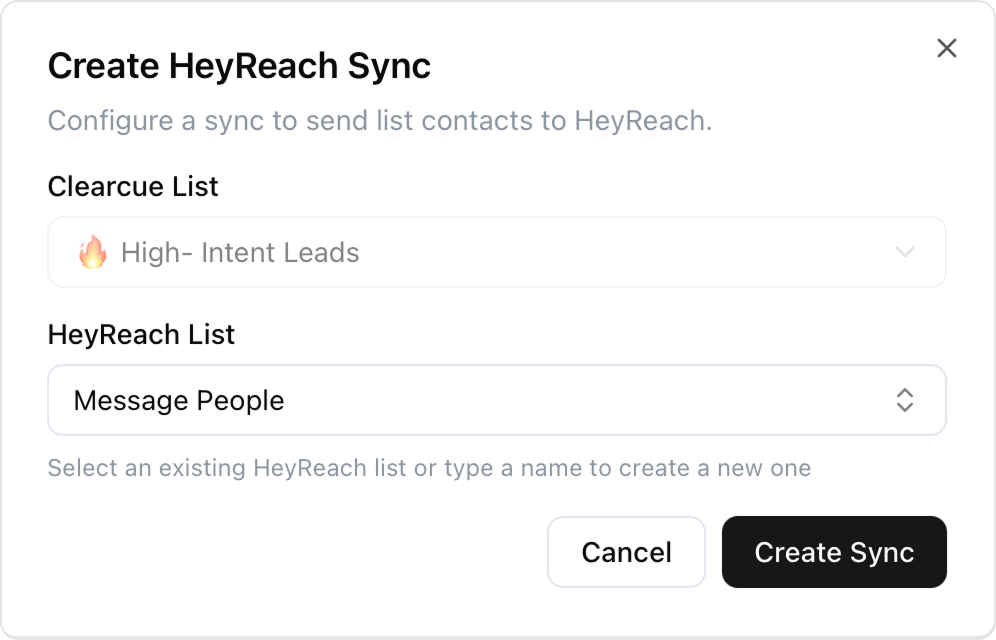
 Choose an existing HeyReach list from the dropdown, or type a name to create a new list in HeyReach.
Click **Create** to save. Clearcue will automatically start syncing people from your list.
You can also configure HeyReach syncs directly from any List:
Navigate to the List you want to send to HeyReach.
Go to **List Settings** → **Integrations**.
Select or create a HeyReach list and save. People from this list will be synced automatically.
Choose an existing HeyReach list from the dropdown, or type a name to create a new list in HeyReach.
Click **Create** to save. Clearcue will automatically start syncing people from your list.
You can also configure HeyReach syncs directly from any List:
Navigate to the List you want to send to HeyReach.
Go to **List Settings** → **Integrations**.
Select or create a HeyReach list and save. People from this list will be synced automatically.
 ## Monitor Syncs
From the syncs table, you can see the status of each sync including:
* **Status** - Whether the sync is enabled or disabled
* **People Synced** - How many people have been sent vs total in the list
* **Last Sync** - When the last sync occurred
Use the **Actions** menu to:
* **View History** - See detailed sync runs with added, updated, and failed counts
* **Enable/Disable** - Temporarily pause syncing without deleting the configuration
* **Delete** - Permanently remove the sync
## Receive HeyReach Events
You can receive outreach events from HeyReach back into Clearcue as signals. This gives you a complete view of prospect engagement — see when messages are sent, when leads reply, and track the full conversation lifecycle.
### Set up the webhook
Navigate to **Settings** → **Integrations** → **HeyReach** and scroll down to the **Webhook Setup** section. Click **Create Webhook** to generate a unique webhook URL.
## Monitor Syncs
From the syncs table, you can see the status of each sync including:
* **Status** - Whether the sync is enabled or disabled
* **People Synced** - How many people have been sent vs total in the list
* **Last Sync** - When the last sync occurred
Use the **Actions** menu to:
* **View History** - See detailed sync runs with added, updated, and failed counts
* **Enable/Disable** - Temporarily pause syncing without deleting the configuration
* **Delete** - Permanently remove the sync
## Receive HeyReach Events
You can receive outreach events from HeyReach back into Clearcue as signals. This gives you a complete view of prospect engagement — see when messages are sent, when leads reply, and track the full conversation lifecycle.
### Set up the webhook
Navigate to **Settings** → **Integrations** → **HeyReach** and scroll down to the **Webhook Setup** section. Click **Create Webhook** to generate a unique webhook URL.
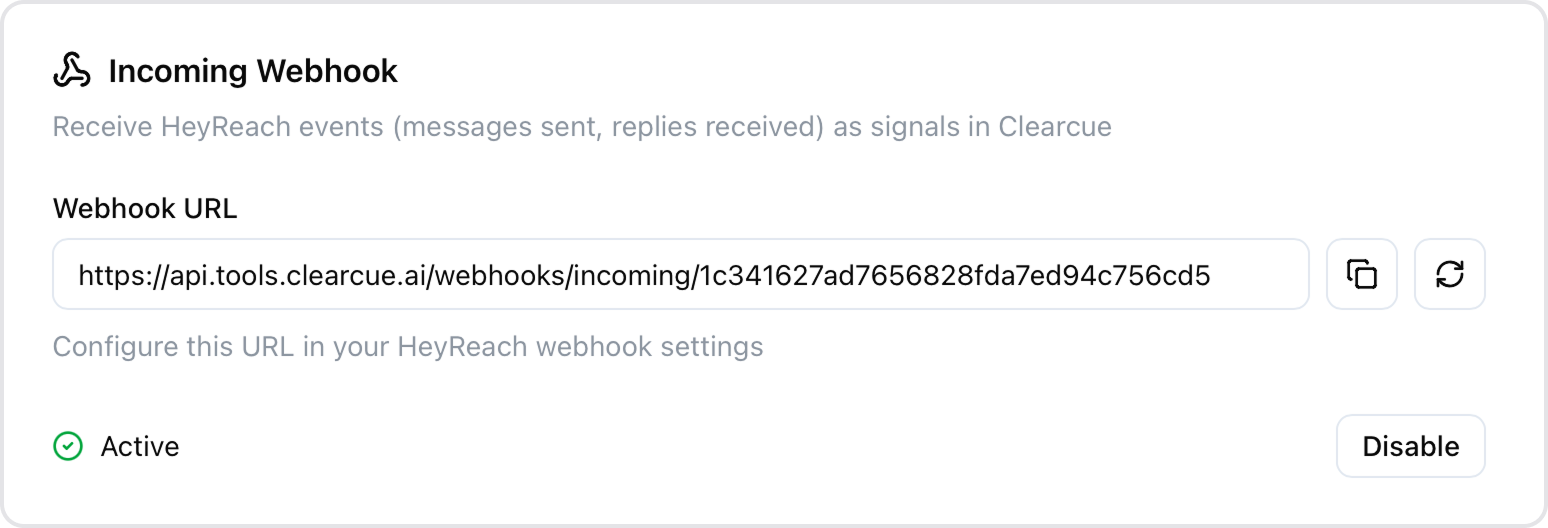 Copy the webhook URL and paste it in your [HeyReach webhook settings](https://app.heyreach.io/app/integrations/public-api/webhooks). You'll create one webhook per event type you want to track.
### Event types
There are five event types you can track. Each one creates a different signal in Clearcue and requires its own webhook configuration in HeyReach. The only difference when configuring each is the event name you select.
Fires when a **regular LinkedIn message** is sent to a lead through a HeyReach campaign. This is an **outbound** event — it tracks your team's outreach activity.
Use this to monitor outreach volume, see which leads have been contacted, and ensure your campaigns are running as expected.
Fires when a **LinkedIn InMail** is sent to a lead through a HeyReach campaign. This is an **outbound** event. InMails are premium LinkedIn messages that can reach people outside your network.
Use this to track InMail outreach separately from regular messages, especially useful for campaigns targeting prospects you're not yet connected with.
Fires **only the first time** a lead replies to a regular LinkedIn message in a conversation. This is an **inbound** event.
This is the most common event for tracking engagement. It captures the moment a cold lead becomes a warm prospect by responding to your outreach. Subsequent replies in the same conversation do **not** trigger this event again.
Fires **only the first time** a lead replies to an InMail. This is an **inbound** event.
Similar to First Message Reply, but specifically for InMail conversations. Useful when you want to track InMail engagement separately from regular message replies.
Fires **every time** a lead replies to any message or InMail — not just the first reply. This is an **inbound** event that covers both regular messages and InMails.
Use this when you want to track the full conversation, including follow-up replies. This gives you visibility into ongoing engagement beyond the initial response.
Each event type creates its own signal in Clearcue. You can enable as many as you need — for example, track "Message Sent" for outreach volume and "First Message Reply" for conversion tracking.
### How to configure an event
The setup is the same for all five event types — only the event name changes.
Go to **Signals** and click **Create signal**. In the template library, select **HeyReach** from the sidebar to see the available event types.
Copy the webhook URL and paste it in your [HeyReach webhook settings](https://app.heyreach.io/app/integrations/public-api/webhooks). You'll create one webhook per event type you want to track.
### Event types
There are five event types you can track. Each one creates a different signal in Clearcue and requires its own webhook configuration in HeyReach. The only difference when configuring each is the event name you select.
Fires when a **regular LinkedIn message** is sent to a lead through a HeyReach campaign. This is an **outbound** event — it tracks your team's outreach activity.
Use this to monitor outreach volume, see which leads have been contacted, and ensure your campaigns are running as expected.
Fires when a **LinkedIn InMail** is sent to a lead through a HeyReach campaign. This is an **outbound** event. InMails are premium LinkedIn messages that can reach people outside your network.
Use this to track InMail outreach separately from regular messages, especially useful for campaigns targeting prospects you're not yet connected with.
Fires **only the first time** a lead replies to a regular LinkedIn message in a conversation. This is an **inbound** event.
This is the most common event for tracking engagement. It captures the moment a cold lead becomes a warm prospect by responding to your outreach. Subsequent replies in the same conversation do **not** trigger this event again.
Fires **only the first time** a lead replies to an InMail. This is an **inbound** event.
Similar to First Message Reply, but specifically for InMail conversations. Useful when you want to track InMail engagement separately from regular message replies.
Fires **every time** a lead replies to any message or InMail — not just the first reply. This is an **inbound** event that covers both regular messages and InMails.
Use this when you want to track the full conversation, including follow-up replies. This gives you visibility into ongoing engagement beyond the initial response.
Each event type creates its own signal in Clearcue. You can enable as many as you need — for example, track "Message Sent" for outreach volume and "First Message Reply" for conversion tracking.
### How to configure an event
The setup is the same for all five event types — only the event name changes.
Go to **Signals** and click **Create signal**. In the template library, select **HeyReach** from the sidebar to see the available event types.
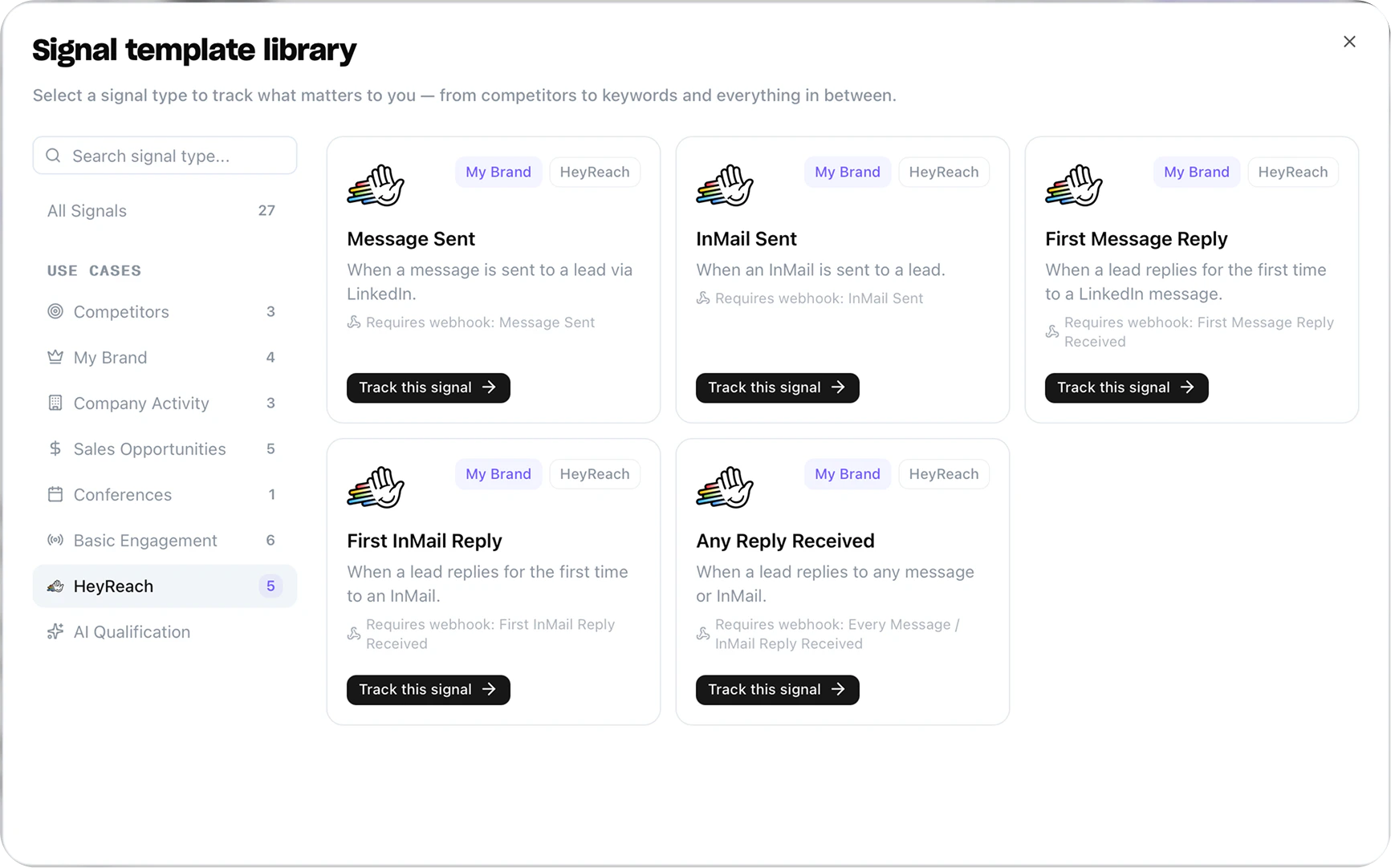 Select the event type you want to track. Choose the sender accounts to monitor, then click **Enable Signal**.
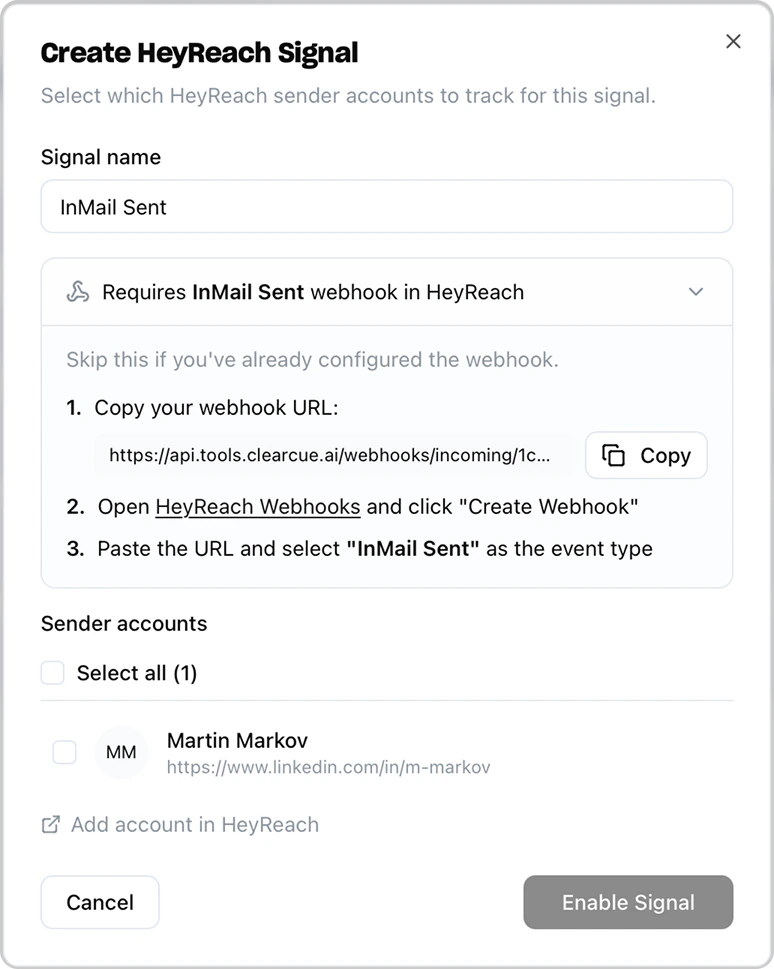 The modal shows which HeyReach webhook event to configure. Open [HeyReach Webhooks](https://app.heyreach.io/app/integrations/public-api/webhooks), click **Create Webhook**, paste your Clearcue webhook URL, and select the matching event type.
Once configured, Clearcue will receive events from HeyReach and create signals for the people in your outreach campaigns.
## What Data is Synced
### Clearcue → HeyReach (per synced person)
* LinkedIn profile URL
* First name
* Last name
### HeyReach → Clearcue (per webhook event)
* Event type (Message Sent, InMail Sent, First Message Reply, First InMail Reply, Every Reply)
* Lead details (LinkedIn profile URL, name)
* Sender details (LinkedIn profile URL, name)
* Conversation messages and context
## Disconnect HeyReach
To disconnect your HeyReach account:
1. Go to **Settings** → **Integrations** → **HeyReach**
2. Click the **Disconnect** button next to your API key
The modal shows which HeyReach webhook event to configure. Open [HeyReach Webhooks](https://app.heyreach.io/app/integrations/public-api/webhooks), click **Create Webhook**, paste your Clearcue webhook URL, and select the matching event type.
Once configured, Clearcue will receive events from HeyReach and create signals for the people in your outreach campaigns.
## What Data is Synced
### Clearcue → HeyReach (per synced person)
* LinkedIn profile URL
* First name
* Last name
### HeyReach → Clearcue (per webhook event)
* Event type (Message Sent, InMail Sent, First Message Reply, First InMail Reply, Every Reply)
* Lead details (LinkedIn profile URL, name)
* Sender details (LinkedIn profile URL, name)
* Conversation messages and context
## Disconnect HeyReach
To disconnect your HeyReach account:
1. Go to **Settings** → **Integrations** → **HeyReach**
2. Click the **Disconnect** button next to your API key
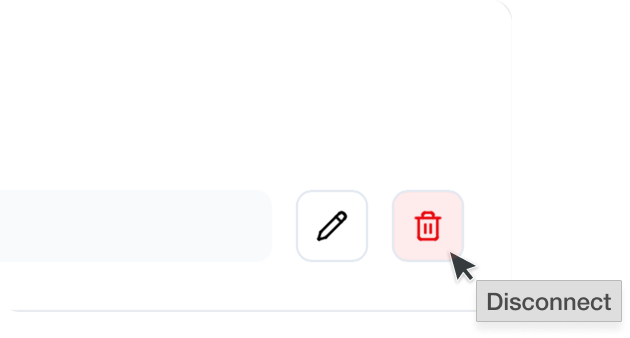 3. Confirm the disconnection
Disconnecting will stop all active syncs. Your existing data in HeyReach will not be affected.
3. Confirm the disconnection
Disconnecting will stop all active syncs. Your existing data in HeyReach will not be affected.